
There are plenty of times when you need to quickly scan a document, whether it’s a signed form, a receipt, school paperwork, or important records for work. The good news is you no longer need a bulky scanner or computer to get the job done. Today, both iPhones and Android phones make it easy to scan documents right from your phone in just a few simple steps.
Once you start using your phone to scan documents, you may find it’s much faster and more convenient than using a traditional scanner. Plus, you can instantly email, save, or upload your scanned files wherever you need them.
Below are simple instructions for scanning documents on both iPhones and Android phones.
Scan Documents on Your iPhone
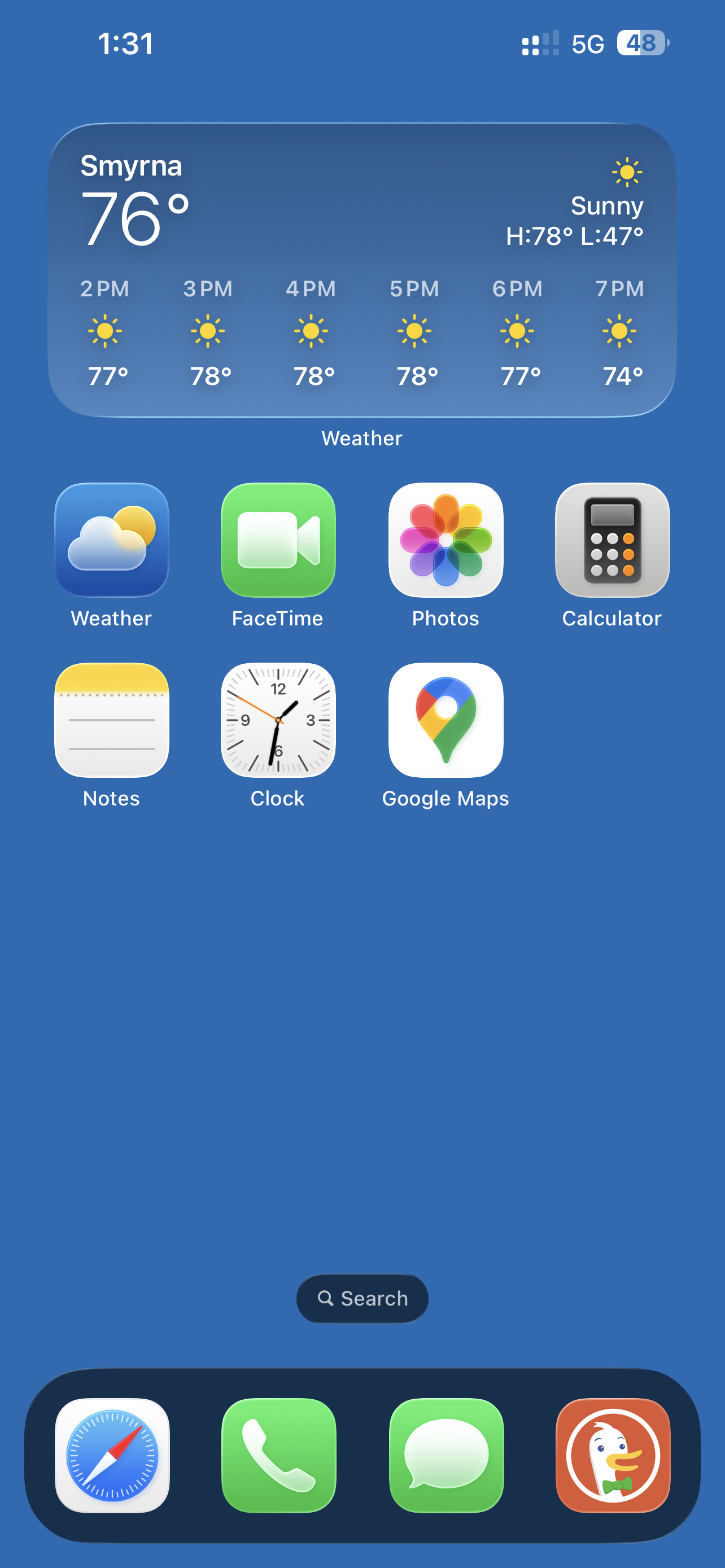
If you have an iPhone, scanning documents is quick and easy using the built-in Notes app or Files app. There’s no need for a separate scanner app, and most people already use these apps daily so now you can get even more use out of them with the below steps.
To Scan a Document in Notes:
-
- Open the Notes app and create a new note or open an existing one.
- Tap the attachment icon, then select “Scan Documents.”
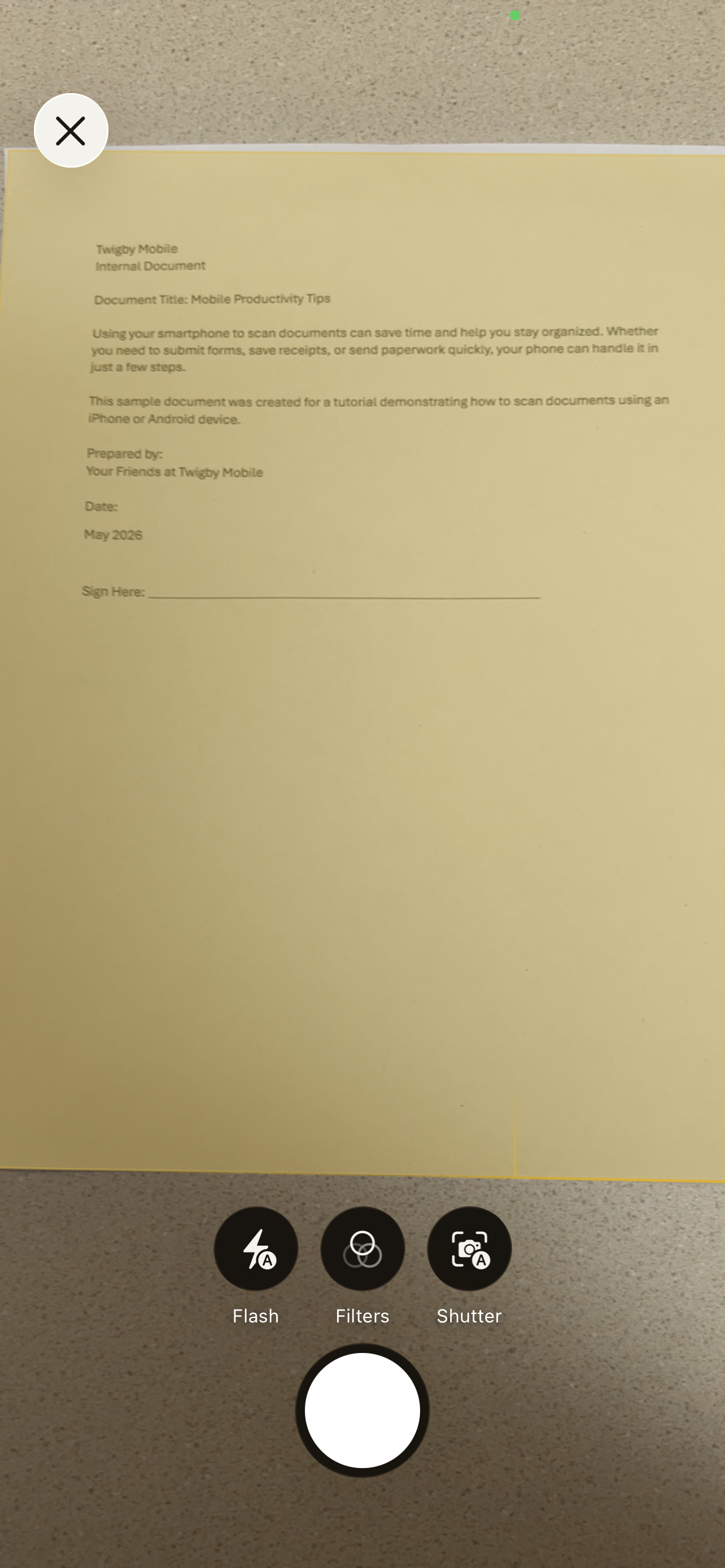
- Place your document in view of the camera.
- Your iPhone may automatically scan the page, or you can manually tap the shutter button or use the volume buttons.
- Adjust the corners if needed so the scan fits the page correctly.
- Tap “Keep Scan.”
- Continue scanning additional pages if needed, then tap “Done.”
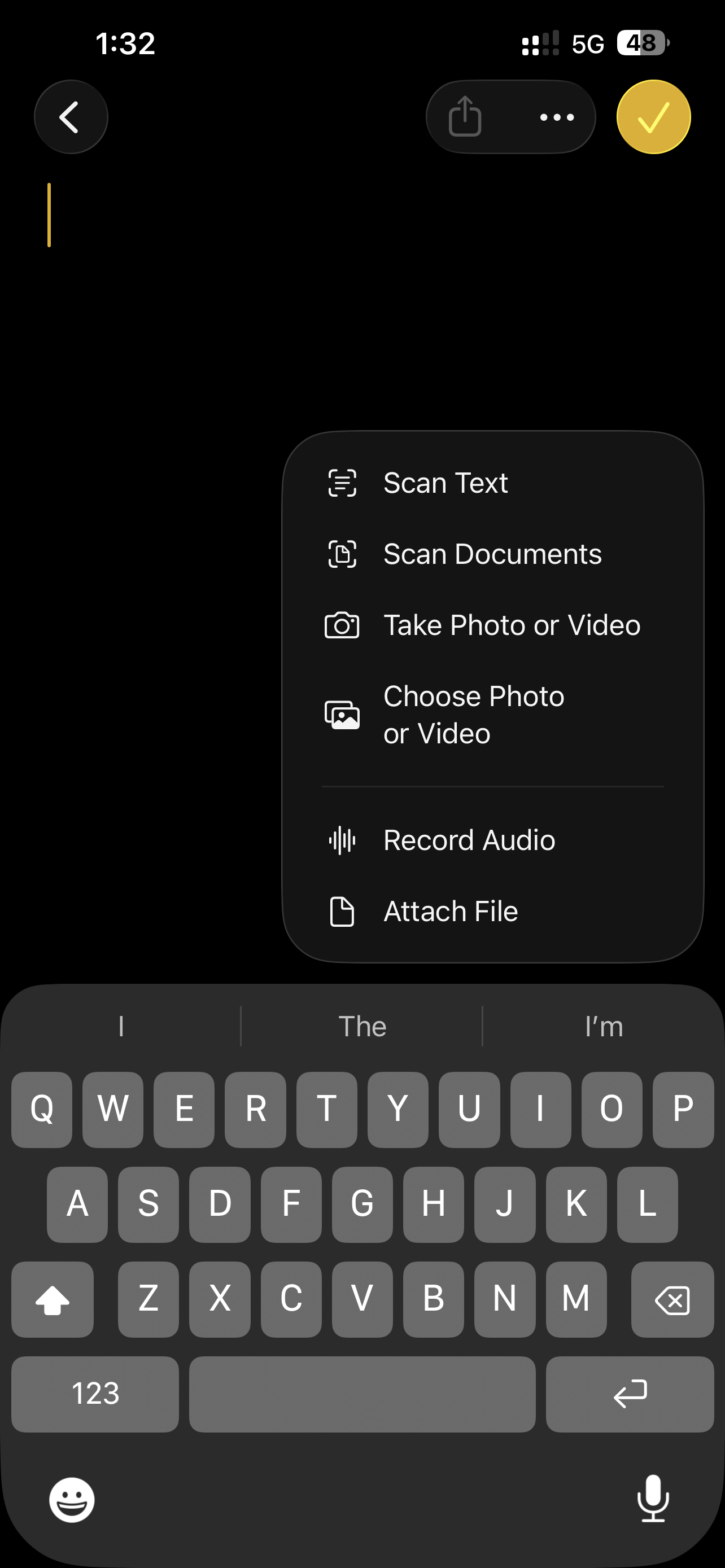
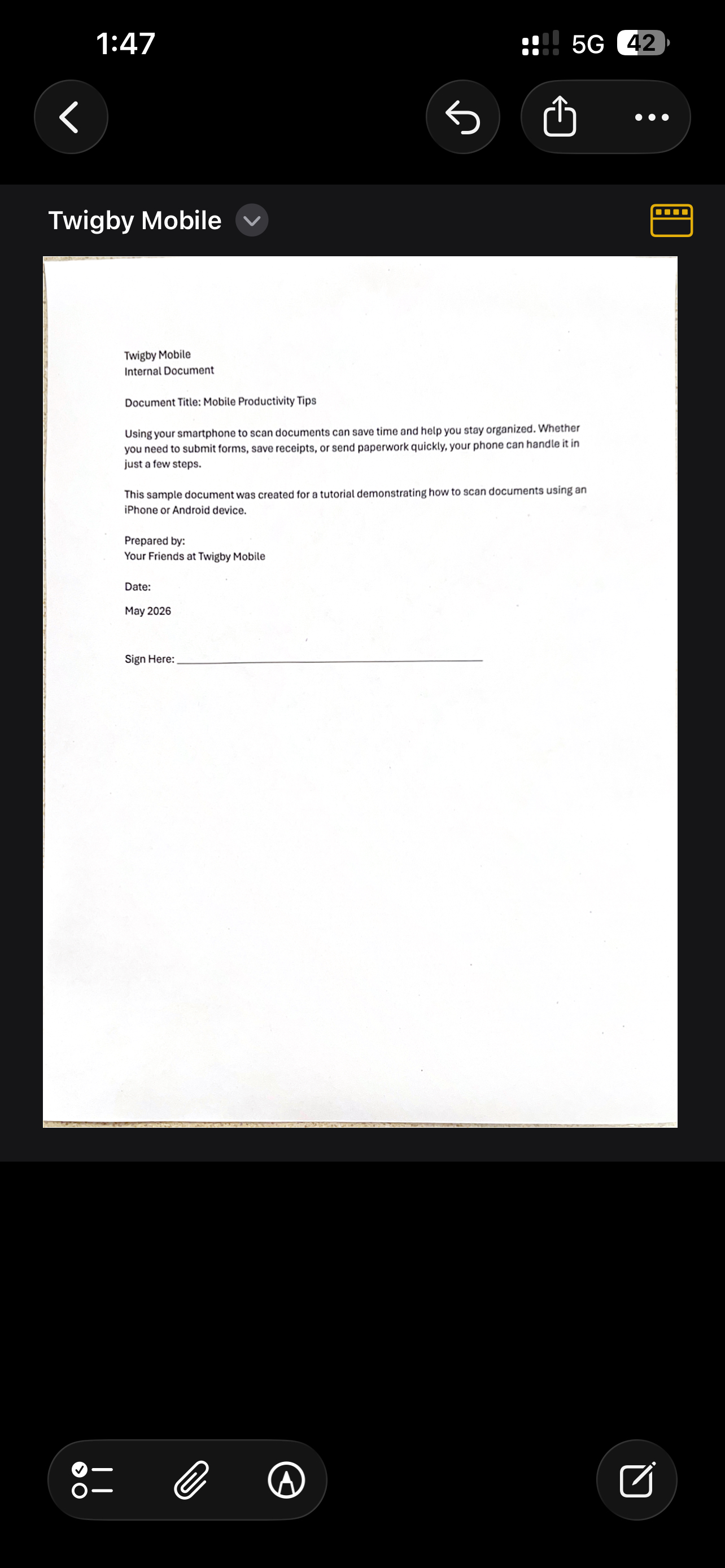
Once your document is saved, you can easily email it, text it, save it as a PDF, or upload it wherever you need it.
Sign a Document on Your iPhone
You can also sign documents directly in the Notes app without printing anything out.
To sign a document:
-
- Open the scanned document in Notes.
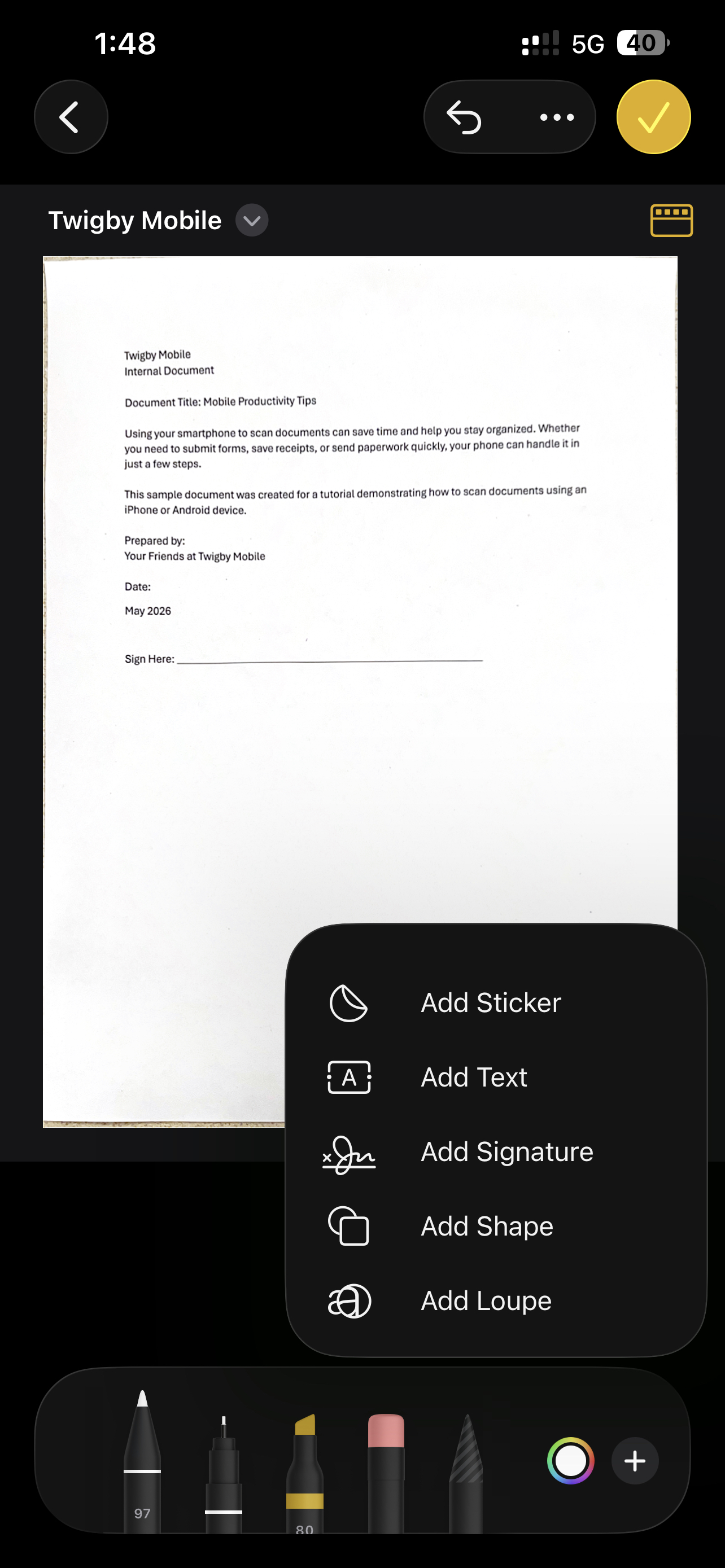
- Tap the Markup option.
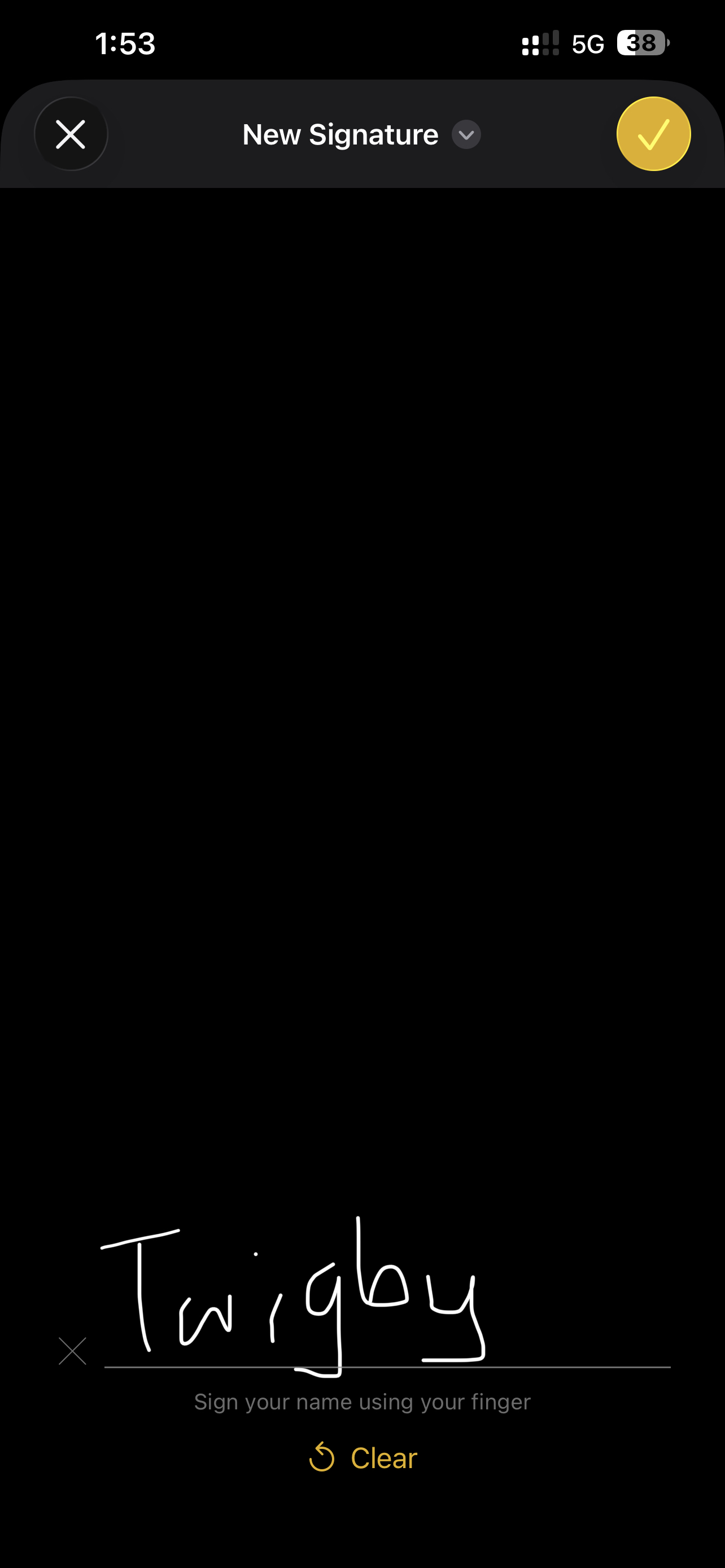
- Select the Add button and choose “Signature.”
- Add a saved signature or create a new one.
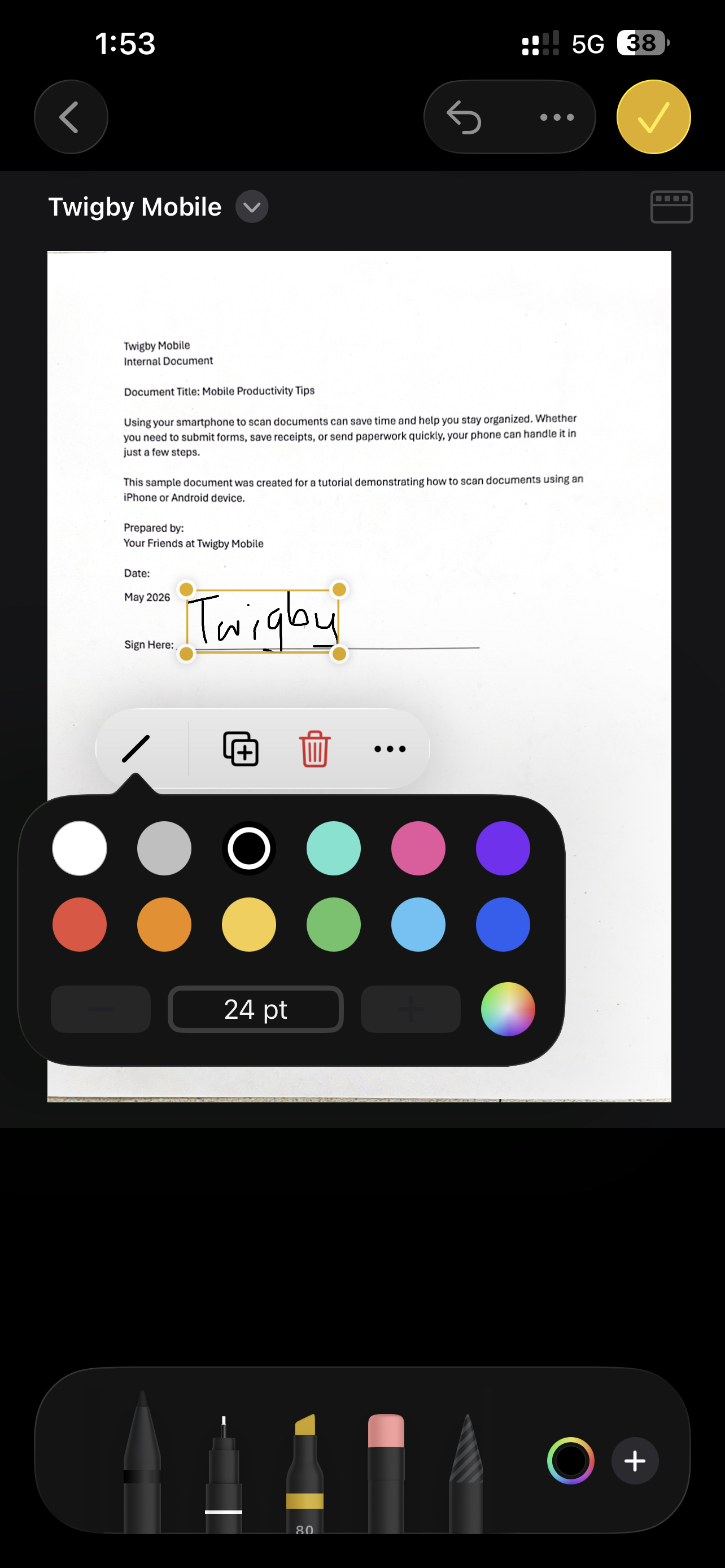
- Resize and place the signature where you want it on the document.
- Tap “Done” to save it.
This can be especially helpful when you need to quickly sign forms while away from home or the office.
Use the Files App to Scan Documents
You can also scan documents using the Files app on your iPhone.
Get Started:
-
- Open the Files app.
- Tap the three dots icon at the top right.
- Select “Scan Documents.”
- Place the document in front of the camera.
- Your phone can automatically capture the scan, or you can manually take the photo yourself.
- Adjust the corners if needed and tap “Keep Scan.”
- Tap “Done” when finished.
- Choose where you want to save the document, then tap “Save.”
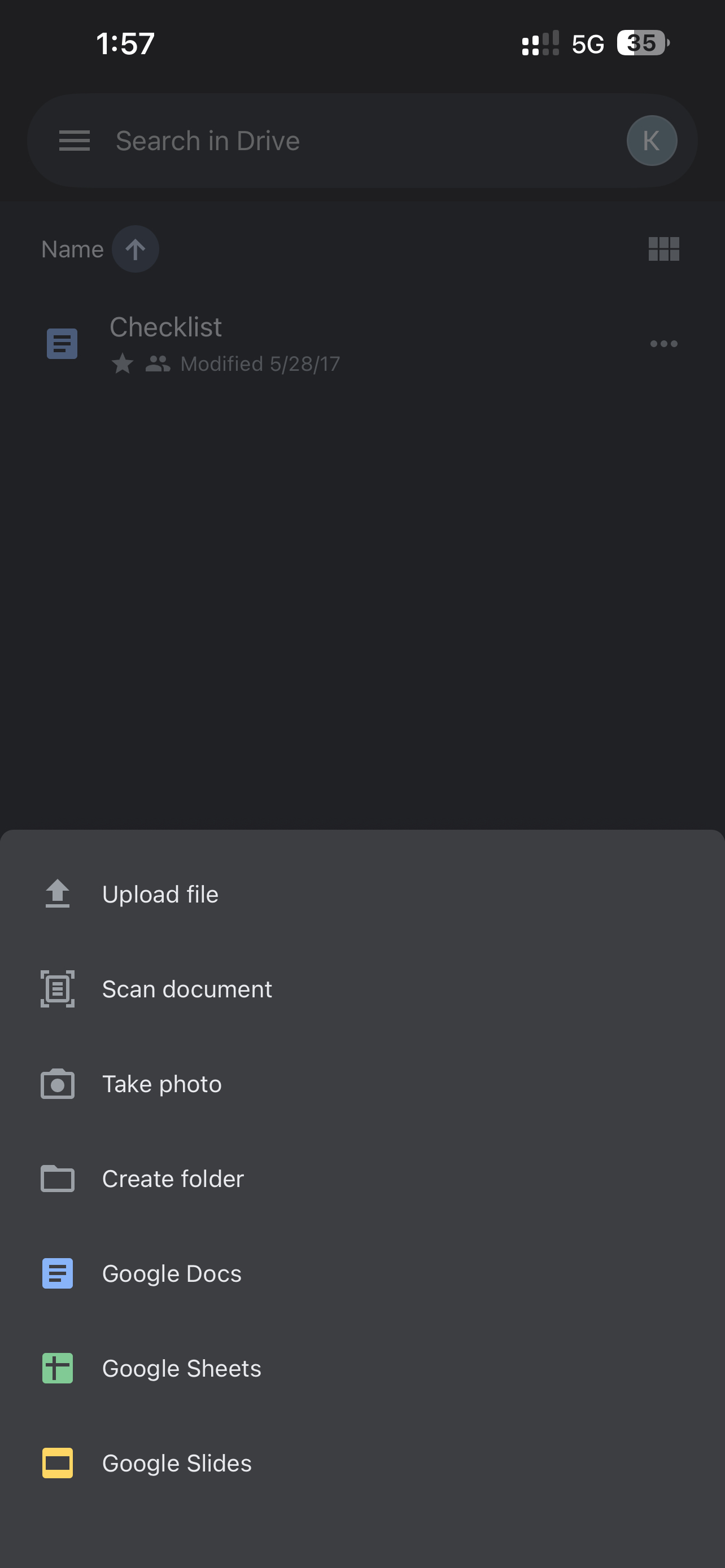
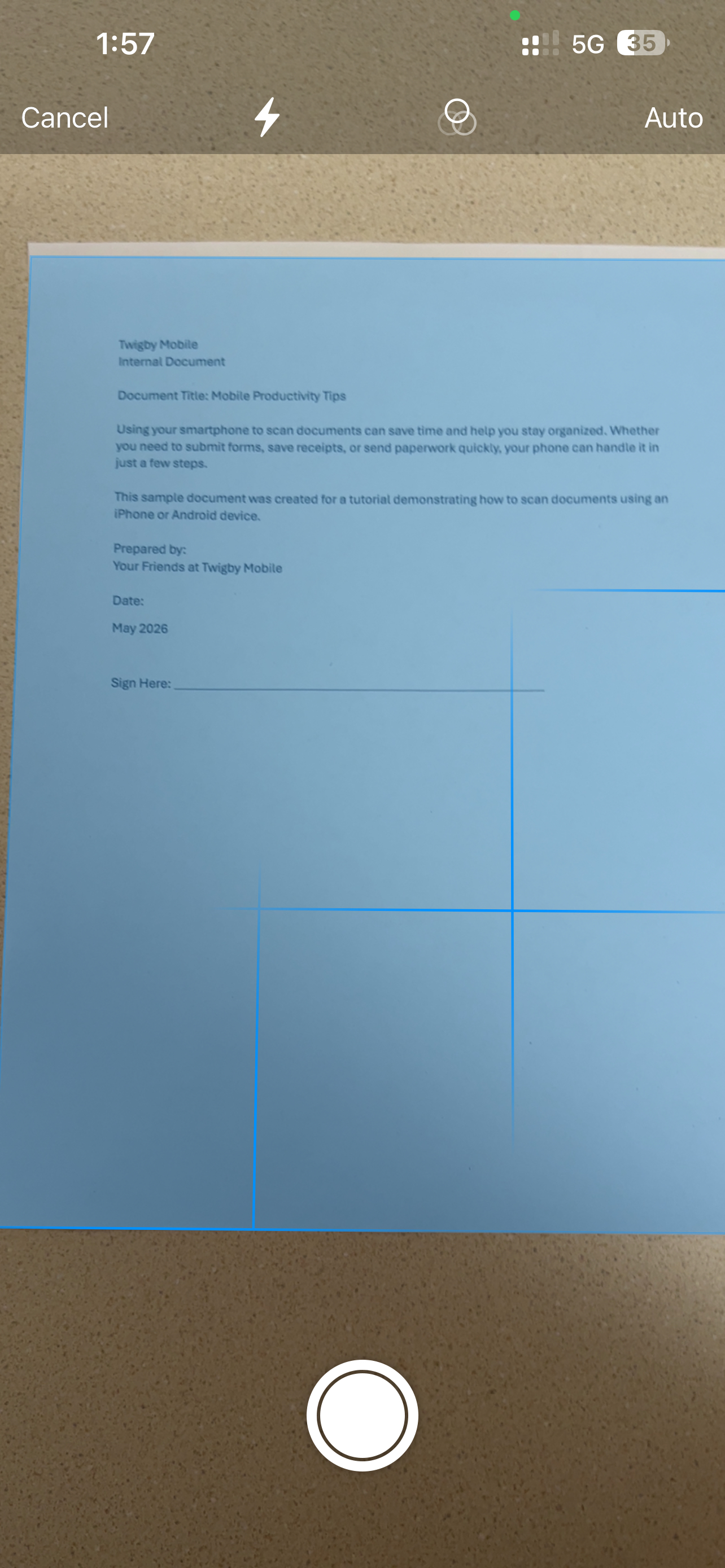
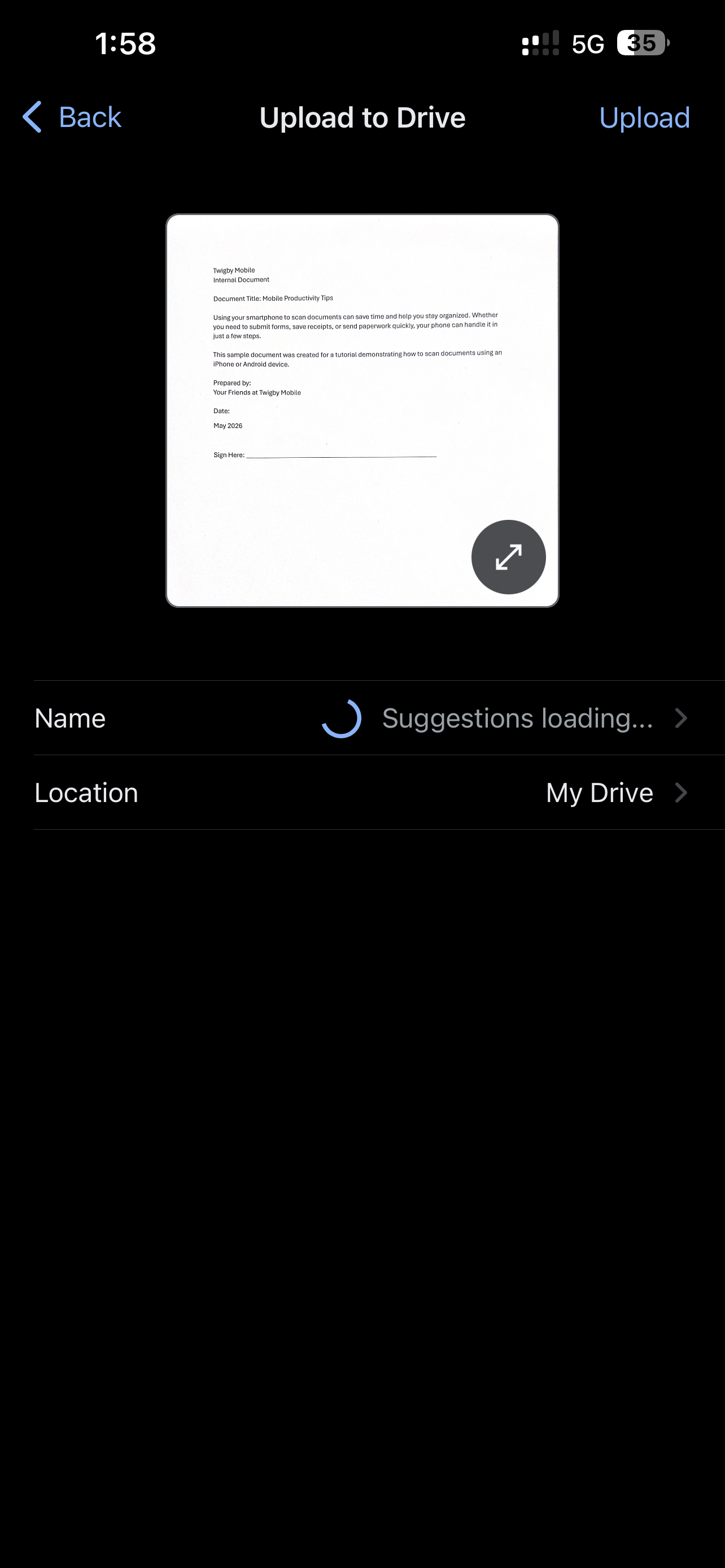
Using either Notes or Files makes it easy to keep important paperwork organized right on your phone.
Scan Documents on Your Android
Most Android phones also come with easy ways to scan documents using built-in tools or Google Drive.
Get Started:
-
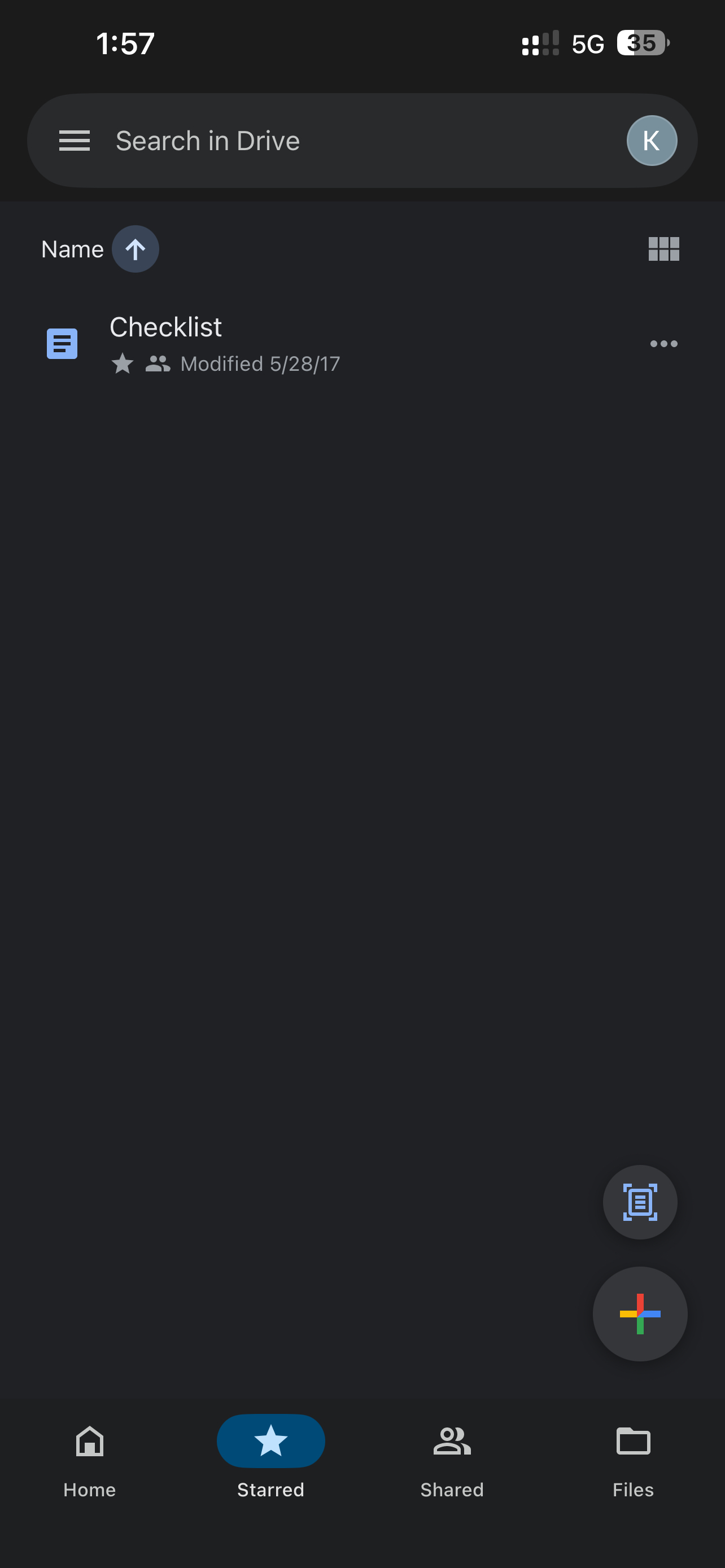
- Open the Google Drive app.
- Tap the plus (+) button.
- Select “Scan.”
- Hold your phone over the document you want to scan.
- Tap the capture button when the page is lined up clearly.
- Crop or adjust the scan if needed.
- Save the document when finished.
Once saved, your scanned document can be renamed, shared, or uploaded wherever you need it.
Some Android phones also include built-in document scanners directly in the camera app, making the process even faster.
Tips for Better Document Scans
To get the clearest scan possible, keep these simple tips in mind:
-
- Place the document on a flat surface.
- Use good lighting to avoid shadows.
- Hold your phone steady while scanning.
- Make sure the entire page fits on the screen before capturing it.
These small adjustments can help your scanned documents look cleaner and easier to read.
Other Options for Scanning Documents on Your Phone
While the built-in scanning tools work great for most people, there are also additional apps available if you want extra features. Popular apps like Adobe Scan and Cam Scanner can help with organizing files, converting scans to text, and creating PDFs.
Before downloading an app, it’s always a good idea to check what features your phone already includes since many phones already have everything you need built in.
At Twigby Mobile, we know your phone helps you stay connected and productive wherever you go. From scanning documents to sharing important files, having reliable phone service makes everyday tasks easier. That’s why we offer affordable phone plans on the nation’s largest and most reliable network, so you can do more with your phone without overpaying.